![VU.CITY-Dark-Gradient-1.png]](https://www.vu.city/hs-fs/hubfs/VU.CITY-Dark-Gradient-1.png?height=40&name=VU.CITY-Dark-Gradient-1.png)
Adjusting the timeline updates building appearances, shadows, and sun position in real time, enabling you to analyse lighting, shadows, and overall site transformation.
Timeline controls are accessible from the Global Bar, with the option to collapse the timeline when it is not needed.
-
Click the time and date in the Global Bar to open the timeline.
-
Select the mode:
-
Date 🗓️ - adjust the date within the available range.
-
Time 🕑 - adjust the time of day between 00:00 and 23:59.
-
-
Adjust using the slider or enter a specific date/time in the field.
-
Collapse the timeline using the arrow when no longer needed.
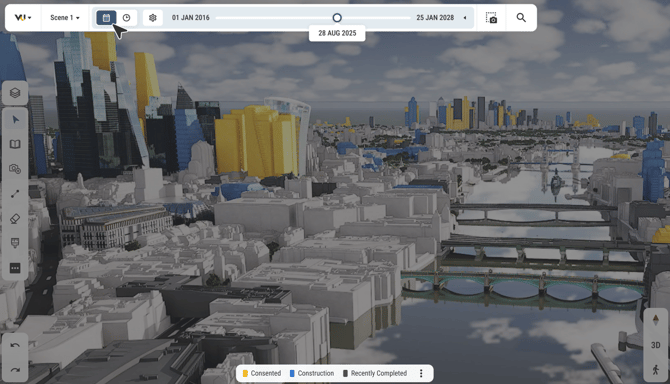
The tool maintains the last viewed settings when you reopen a file and collapses automatically when you leave a scene. Consented building visibility is controlled separately via the legend menu at the bottom of the screen.
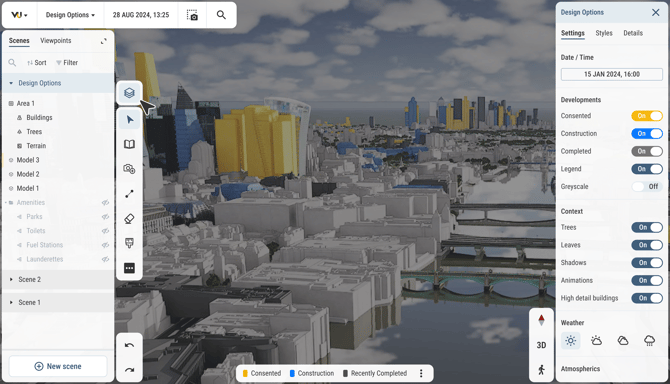
Timeline settings can also be accessed through the properties panel in the Scene Manager, giving you multiple ways to adjust date and time without leaving your current workspace.
ℹ️ Differences and similarities with the legacy VU.CITY App
-
The timeline tool merges the previous functionality of the sunlight button in the toolbar and the consented timeline.
-
Date and time adjustments, including sun position for shadow observation, are now controlled through the timeline.
-
Consented timeline visibility was moved into a separate menu.
-
Option to apply greyscale
-
Show/Hide the key legend
-