![VU.CITY-Dark-Gradient-1.png]](https://www.vu.city/hs-fs/hubfs/VU.CITY-Dark-Gradient-1.png?height=40&name=VU.CITY-Dark-Gradient-1.png)
VU Menu
The VU Menu, accessible from the Global Bar, serves as the central hub for managing VU.CITY files and key project settings. It brings together file operations, imports, exports, preferences and help.
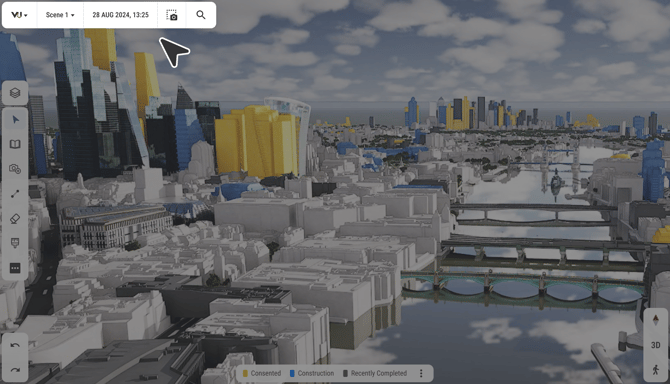
File operations
Projects can be saved, duplicated, opened or started in a new tab directly from the VU Menu:
-
Save - overwrite the current cloud version.
-
Save As - create a duplicate with a new filename.
-
New File - start a project in a new tab.
-
Open - browse the Hub drive and load a
.vufile.
To provide feedback on actions, toasts appear for save, open, and export operations.
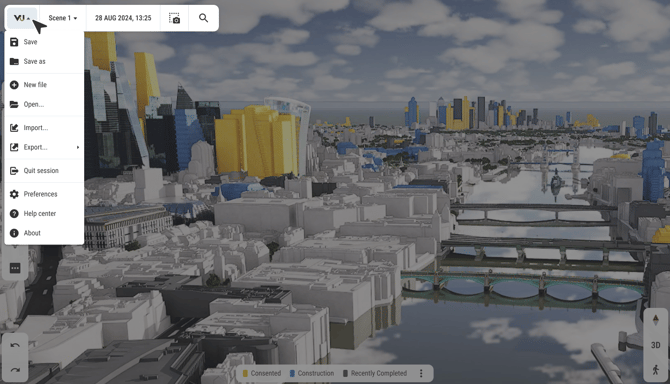
Importing and exporting
The VU Menu allows importing models, data layers, and viewpoints from the Hub or local files. Export options include project data such as CSV files or images. Imported content integrates directly into the project, maintaining a streamlined workflow.
Preferences, help and about
The VU Menu also provides access to configuration and support options:
-
Preferences - configure left/right click behaviour and control-click settings.
-
Help Centre - open the knowledge base in a new tab.
-
About - view VU.CITY version information.
ℹ️ Differences and similarities with the legacy VU.CITY App
-
Combines multiple functions previously scattered across the Developments/Settings buttons into a single Global Bar menu.
-
Save/Save As now includes toasts for feedback and prevents unintended overwrites.
-
Hub integration is streamlined: only .vu files are shown for opening, and files are sorted by last edited by default.
-
Import functionality now covers models, data layers, and viewpoints in a unified flow